Friday, 19 April 2013

Maintain inventory items


We open the Peachtree accounting software. First we go for maintain and select the inventory items.

The inventory items is open
In the maintain chart of account we can full fill following information are;
Item ID: we can write the id of the inventory.
Description; we can write name of the product.
Item class; the can select the items which can relate with such class. Like (stock item, service, labor, assembly, etc)
Inactive; we have no longer planned to used the inventory. We mark the inactive.
Subject to commission: when item is sold though sale invoice and it included in account receivable.
In general tab;
We fill the price, tax type and last unit cost. After they fill we select the which cost method we used LIFO, FIFO and etc. select the sale account and inventory account and cost of sale after the full fill the all requirement we write the preferred vendor id and buyer id.


Tuesday, 16 April 2013

Maintain chat of account:


You can open the Peachtree accounting software in maintain we can select the chat of account

           
The chart of account like this
General
In the maintain chart of account we write the account ID and description. In the maintain chart of account there is two tab first one is general tab and second one is budges tab.
Budgets


We can select the accounting period go for beginning balanced. We can select the accounting period.

Select the period and click the ok.

We can but the the value in the account

After the filling the amount we can select the ok and saved the data.

Tuesday, 9 April 2013

How to maintain vendor record in Peachtree accounting softwar


First we open the Peach tree accounting software  


We selected the vendor’s


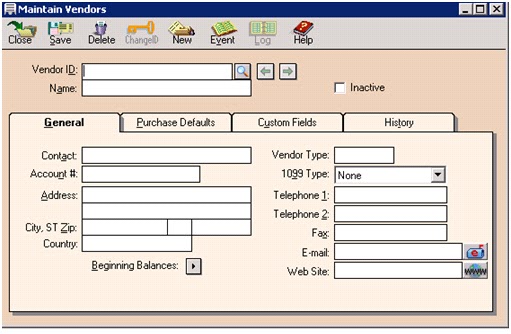
After the selecting the vendor account is open


Vendor id , written vendor name select  general. In general contact name of vendor of the company, account id., address, city zip code and country, vendor type and other information like Telephone, fax no. , email and web site.
When we moved from purchased defaults,


Purchased defaults we fill the purchased rep., Purchased account no. , tax id. , select they deliver from paper form or email.
We open the customer fields


Office manager name and account rep. and special note we can written about vendor’s  
And in the history


In history vendor  since  the join, last date of invoice and amount, last date of payment and amount and all information is full fill we can saved the record about vendor of the company. 

Tuesday, 2 April 2013

How to saved the customer information in Peachtree Accounting


First we open the Peachtree Accounting software click on maintain and select customers / prospects


After the selection of customers / prospects the software open the maintain customers / prospects


We can fill customer id for example 100 and name of the company like abc company. In general tab we can write the first one in contact those person name whose can create the link between the companies. Address of the company of customers, city zip code, and country telephone etc.
After we fill the general and go for next tab sale defaults
                     

In sale defaults sale representative the person name, GL sale account return the account number, open P.O the purchased odder which we can record in comprised system they can record. Price level  they can recorded 1 to 10.
After the full fill the sale defaults we go for payment defaults
                                           

in payment defaults we can take credit payment to the customer , first we fill the customer card  holder name  , address , country name , credit card number, expired date,
After the full fill we go for customer fields


In customer field we can write the other information about customer.
 After the filling the information, we go for history


We full customer year, invoice date and amount, last date of payment and amount, last statement date after full fill all requirement we press the save the information can saved in the software.

Tuesday, 26 March 2013

How to doing work on Peachtrees Accounting .


Introduction:
Peartrees Complete  Accounting  is an software which can store the company record’s . I will tell about how to create and account on Peartrees Complete Accounting.
First we open the Peartrees Complete Accounting 


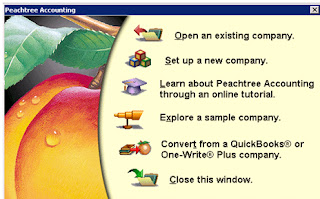
The first step we select option . we can open the company record we select the option of Open an existing company , we can create new company we can select the set up a new company, we can learn about how to do work on Peartrees Complete Accounting we select the learn about Peartrees  Accounting through an online tutorial, we can take overview of the company we select the option of Explore a sample company, we want to cover company in other software  we select an option of   Covert from a Quick books  or one Write plus company, and after your account of company made u can see your account to we select option closed the window.
We can create an account of new company in Peartrees Complete Accounting, we need to select the option   set up a new company.  After the selection 


In other step we can provide the detail the Peartrees Complete Accounting, we can full fill the requirement. After the reading we select next ,
First we fill company information


The form are open we can fill the information like name of the company our address’s country, telephone no. we can write information after filling information we selecting next ,

Second chart of account of the company


We need to make retail and devices of the company we select option one, in the chart of account we we can take the sample  other other company selection second option if we need  to copy of other account select  third option, covert  a company account or program select option no. four and build new a  account select of last and select next
We select the last option build your own company account,
Next step Accounting method


We select the accrual method every company have own method  after the selection we click on next.
Next step is Point method


We select real time in the real time the computer can record the current time the account have been made, and select next button,
Next step is Accounting period


Many company it own accounting period normal accounting period is 12 monthly , we select the 12 month accounting periods and select next.


   We set the time and date and every thing we can make accounting to own method
Last step


 You can create account on Peartrees Complete Accounting, we can select the the finish.